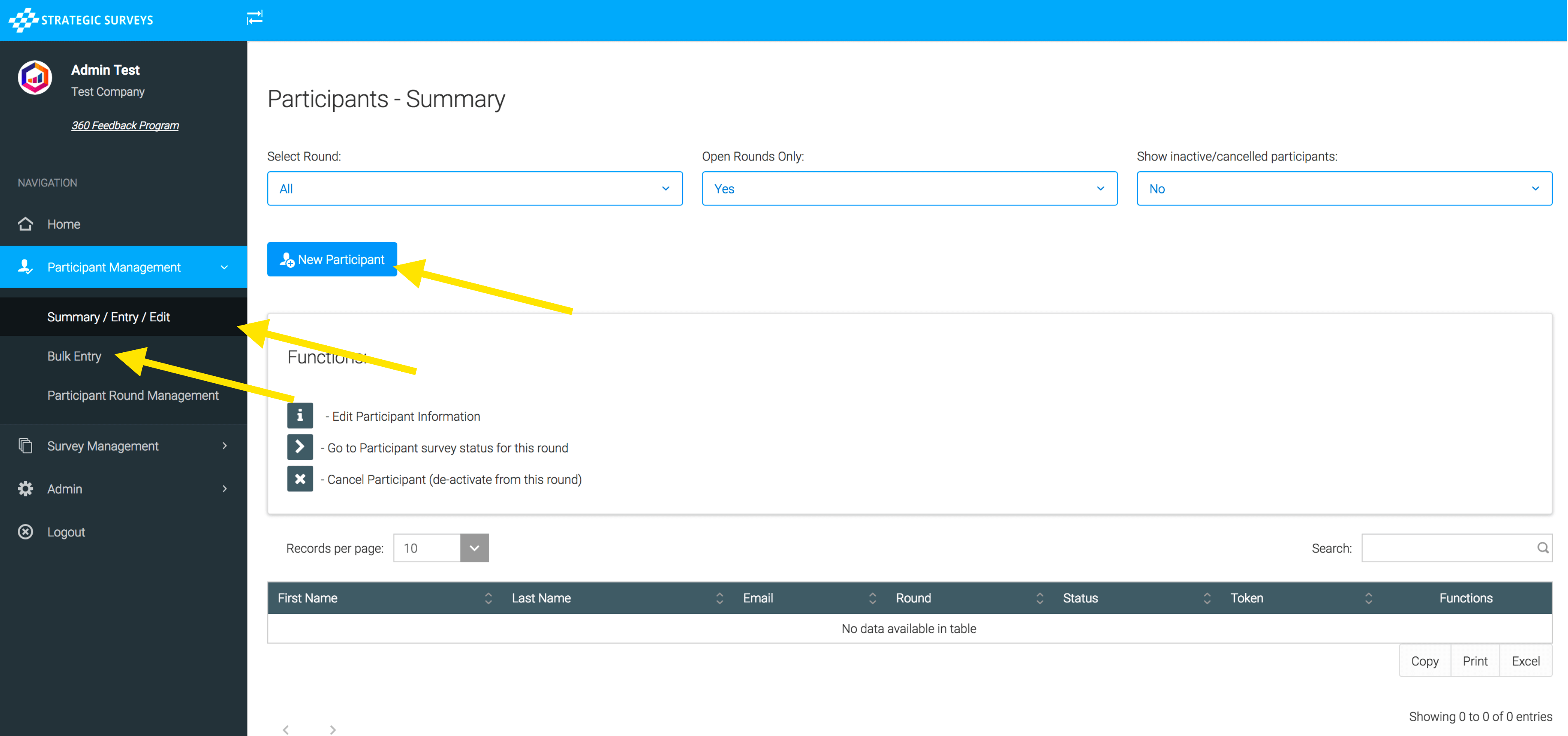
You can now add participants to the rounds by going to ‘Participant Management’, and adding individually in ‘Entry / Edit’, or in bulk through ‘Bulk Entry’:
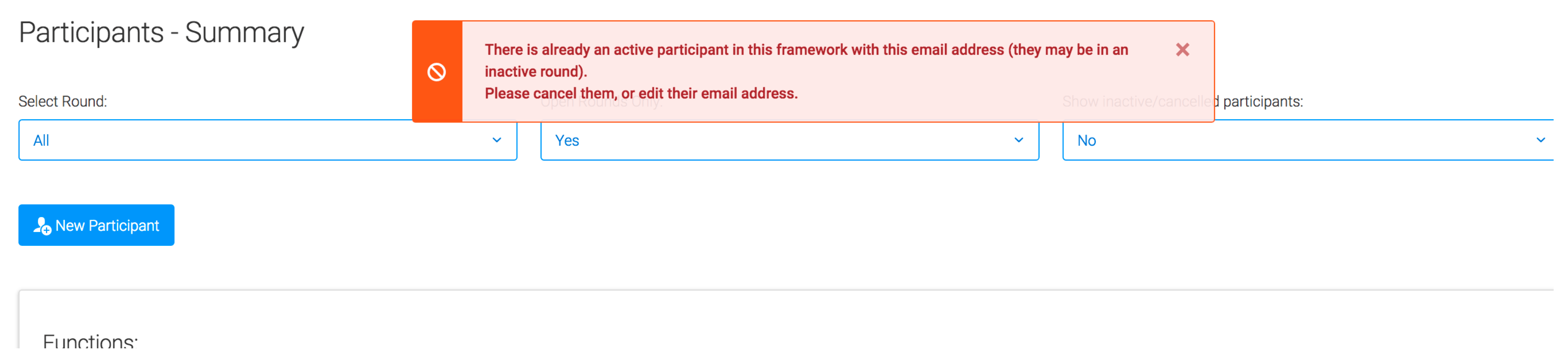
Similar to how the round addition functions, if you are adding an individual participant it will pop up an ‘information’ form where you can enter all required information. The system will prevent you from adding a participant with an email address that has already been used in the framework (for example in an earlier round), this is to prevent clashes with user logins (for frameworks that use the user portal), survey and respondent management - if they need to do the program again either edit the old participant and change their round, or edit the email address on the older participant to a different ‘placeholder’ address, or cancel the older participant entry. The round selection will default to the newest round but if there are multiple to choose from you can select from the drop down.
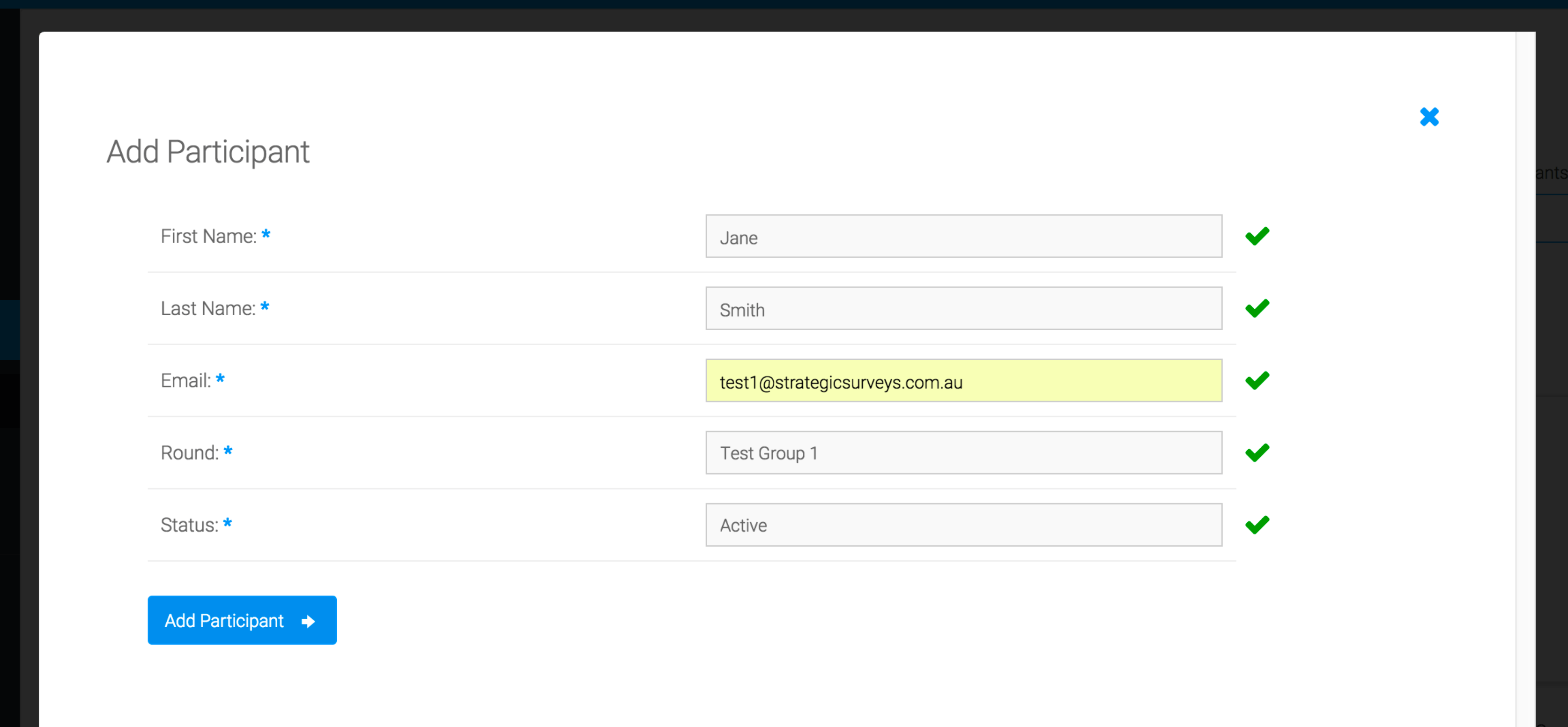
If you are running a manager-approval 360 or a manager 180, you may also see fields for manager name and email. For the manager-approval programs, this is mandatory, and all fields are required. If you are running the 180 program where you can import a manager linked directly to a participant, this is optional and the manager can be added in later (the same as with the bulk import).
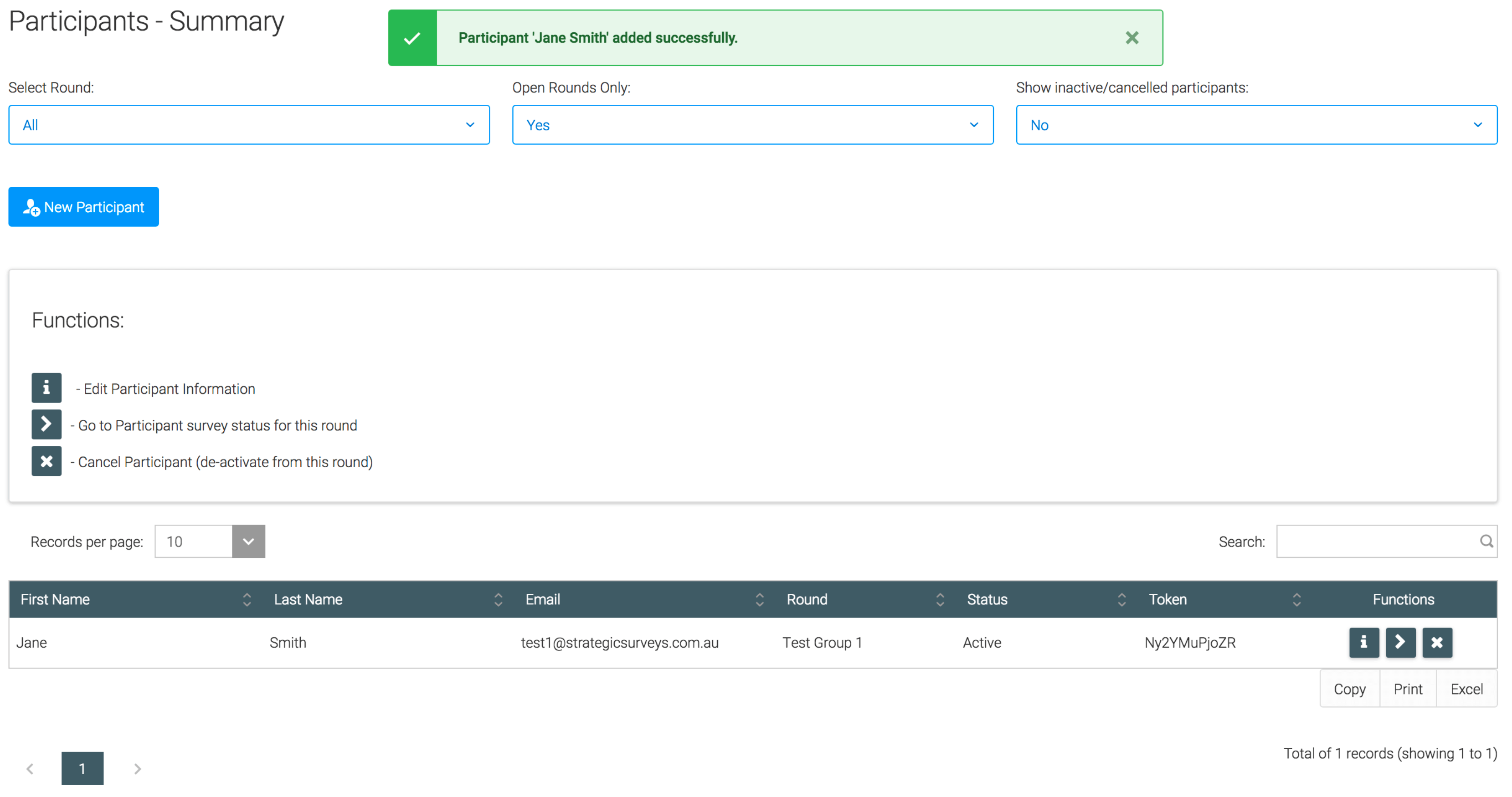
As with the round management, you will be displayed a message on successful addition or edit of a participant, and see the change instantly in the summary table below:
Warning message on trying to add a duplicate email address: