
For a standard 360 program there are 5 email templates available for editing - participant invite to the process, participant reminder to nominate respondents, participant reminder to complete their self score, respondent invite to complete the 360 survey, and respondent reminder. You can edit a ‘default’ template for the framework, or create a round specific one by selecting a round from the drop down box and replacing the placeholder text (see below). Other programs will describe the templates required at the top of this page. You may also have access to the 'forgotten password' email, and the multifactor authentication email.
There are a number of placeholders available to use, such as due dates (from the round setup), number of days left to fill in the survey, participant name, email recipient name (if not the participant, eg. if its a respondent), the link to the portal url and the link to the survey itself (if it’s an email specifically linked to a survey). This information is described at the top of the screen and you can select which template to edit from the drop down box:
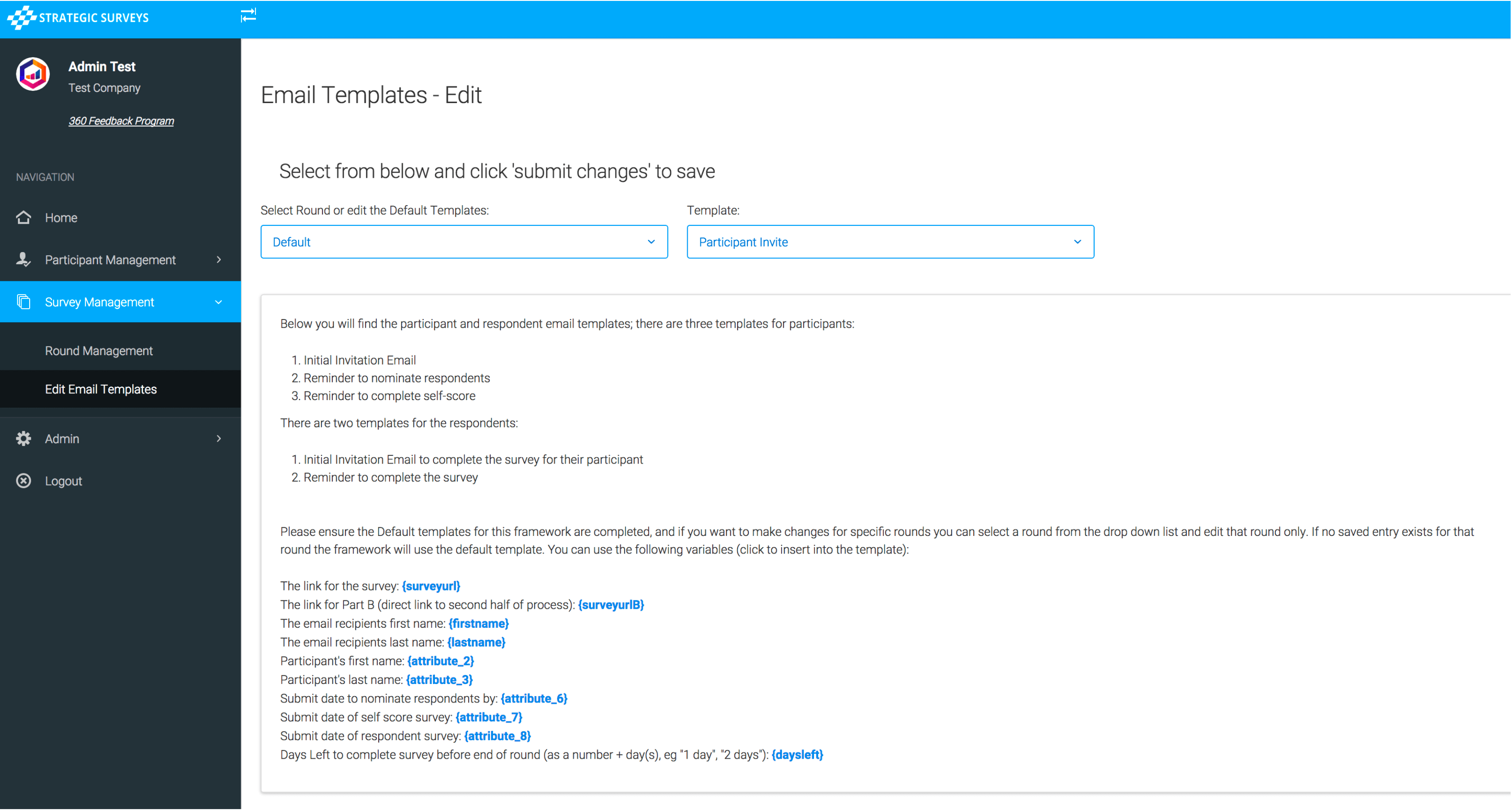
Below this is the editing area, where you can set the Subject of the email, and the content. It is a html editor so you can copy/paste in formatted text to some degree but you can also use the formatting options in the editor. If you know how to edit html you can click the ‘Source’ button to edit it directly. You should be familiar with editing HTML source code in order to keep the optimal layout for your emails. Editing the email without checking/updating the source code can alter the layout and style in unexpected ways, and Strategic Surveys will be happy to enter and edit these templates for you.
You can upload images and use them as logos for the emails, insert links, etc. Once you select an email type to edit from the drop down list, it will be loaded into the editor below:
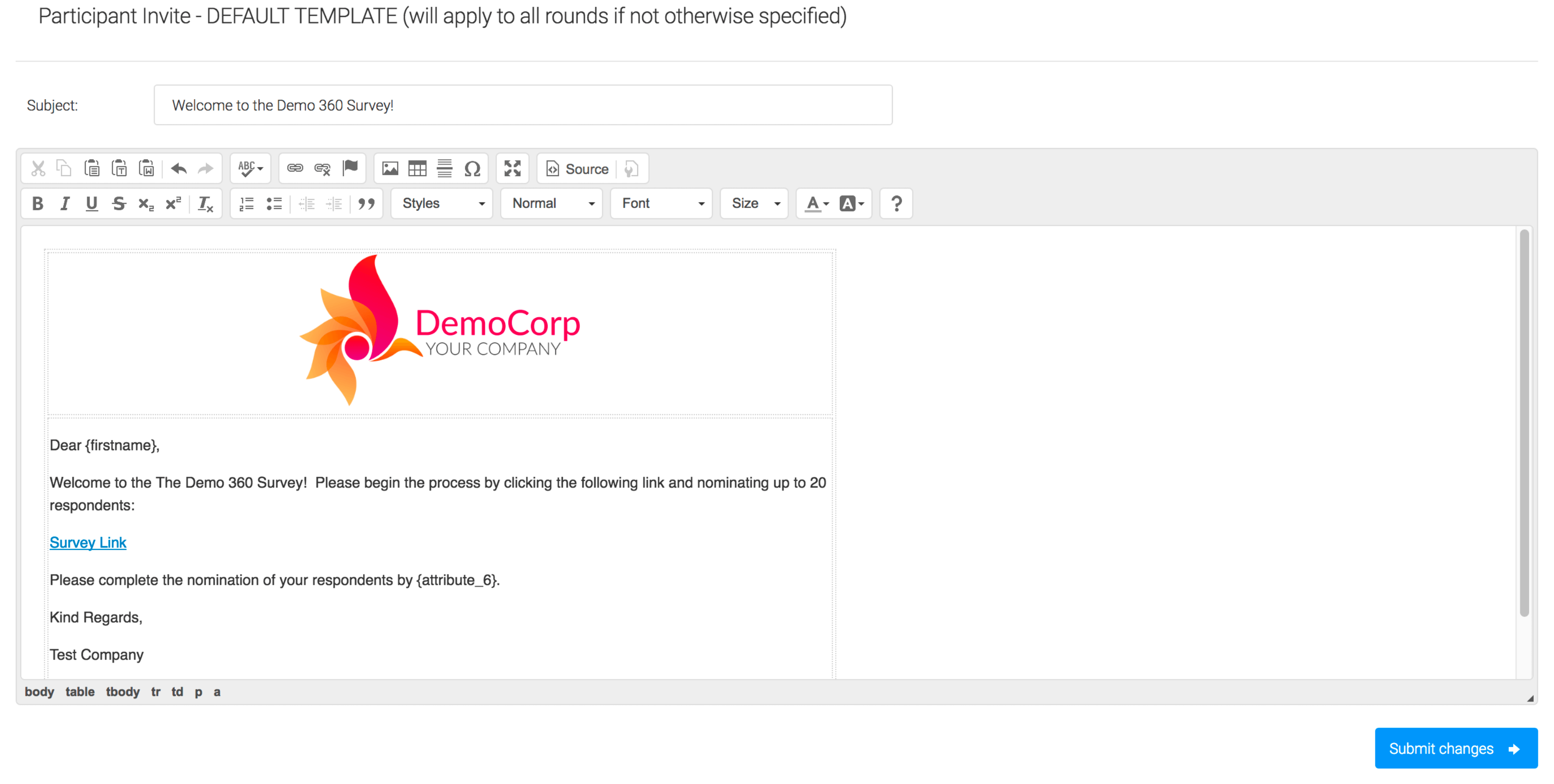
If you choose a round with no saved email template you will see some placeholder text, once you click ‘Submit Changes’ it will be used in place of the default email for ALL further email correspondence for that round, unless you go back in and clear out (select all and delete) from the round specific template. On page reload you should see the placeholder text again, which means you will be back to using the default email for that round. This could be useful if you wanted to change the text for a specific round to imply urgency, or to hard code a different end date in there just for that group.